If you are experiencing disconnection issues in Phasmophobia, try the following troubleshooting steps to stabilize your connection and resolve potential network-related problems.
🔄 1. Restart and Check Your Network
- Restart your Wi-Fi router or modem.
- Restart Steam and ensure your internet connection is stable.
- If using Wi-Fi, try switching to a wired Ethernet connection for better stability.
🛑 2. Disable Firewall/Antivirus Software
Some security software can block network access for Phasmophobia. Try temporarily disabling your firewall and antivirus, or add an exception for Phasmophobia.
How to Disable Windows Firewall:
- Open Windows Search and type Windows Defender Firewall.
- Click Turn Windows Defender Firewall on or off from the left menu.
- Under both Private network settings and Public network settings, select Turn off Windows Defender Firewall (not recommended).
- Click OK, then try launching Phasmophobia.
How to Add an Exception in Windows Firewall:
If you don't want to disable the firewall entirely, you can allow Phasmophobia through it:
- Open Windows Defender Firewall.
- Click Allow an app or feature through Windows Defender Firewall.
- Find Phasmophobia on the list (or click Change Settings → Allow another app → Browse for Phasmophobia’s .exe file).
- Ensure both Private and Public boxes are checked.
- Click OK, then restart the game.
How to Disable Antivirus (Bitdefender/Norton/Other Security Software):
Different antivirus programs have their own methods, but here’s a general way to disable them:
- Locate the antivirus icon in the system tray (bottom-right of your screen).
- Right-click it and look for options like Pause Protection, Disable Antivirus, or Exit.
- If asked, choose Disable Until Restart or Temporarily Disable.
- Try running Phasmophobia and see if the issue persists.
⚠️ If disabling the antivirus fixes the issue, add an exception for Phasmophobia in the antivirus settings instead of keeping it disabled!
🌍 3. Check for Network Restrictions
- Ensure your network provider or ISP isn't imposing restrictions.
- If using a college/university network, it may block certain ports required for Phasmophobia.
- Region Sanctions: Some countries may restrict gaming traffic.
Fix: If you keep getting kicked from lobbies after creating a game, try switching networks (e.g., using a mobile hotspot).
🛡️ 4. Use a VPN (if needed)
If all else fails, try using a VPN to bypass network restrictions.
⚠️ Make sure to check your local laws regarding VPN usage before proceeding! ⚠️
⚙️ 5. Additional Fixes
If you're still having issues, try these advanced solutions:
🔁 5.1 Restart Network Using Windows Network Reset
- Right-click the internet icon in the bottom-right corner of your desktop.
- Select Network and Internet Settings.
- Click Advanced Network Settings.
- Select Network Reset.
- Click Reset Now, then restart your computer.
🔥 5.2 Allow Phasmophobia Through Windows Firewall
- Open Windows Search and type Windows Defender Firewall.
- Select Advanced Settings.
- Click Inbound Rules → Select New Rule.
- Choose Port, then select TCP.
- In Specific Local Ports, enter:
27015-27030, 27036-27037 - Click Next until you reach Description, name it Phasmophobia TCP.
-
Repeat steps 1-6 for UDP, but use the following ports instead:
4380, 27000-27031, 27036 - Name this rule Phasmophobia UDP.
- Restart your PC and try launching the game again.
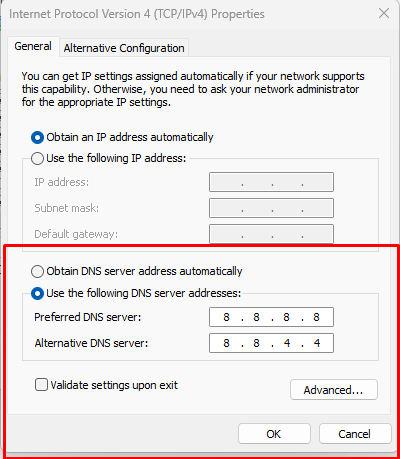
🌎 5.3 Set Up Google DNS
Using Google DNS can improve connection stability:
- Open Network and Internet Settings.
- Navigate to Advanced Network Settings → Change Adapter Options.
- Right-click your active network connection and select Properties.
- Scroll to Internet Protocol Version 4 (TCP/IPv4) and click Properties.
- Select Use the following DNS server addresses:
-
Preferred DNS Server:
8.8.8.8 -
Alternate DNS Server:
8.8.4.4
-
Preferred DNS Server:
- Click OK, then restart your PC.
🛠️ Final Steps
After trying the above solutions:
- Restart your PC and router.
- Launch Phasmophobia and check if the issue persists.
- If issues continue, try contacting your ISP or Phasmophobia Support.